

Your Guide

Mose Hayward
Productive Vagabond
I came into reviewing the Tern Setups Portable Monitor + Stand as a bit of a skeptic. I was not looking for a new nomad efficiency setup, but many readers have been switching over to Tern so I thought I should finally check out this tool and give you my thoughts.
I’ve already shared what I believed to be an ideal multi-screen setup for the working traveler, but the unique Tern second-screen tripod seemed like a potential minor improvement on this.
In fact, the Tern Monitor and Stand is a major comfort and productivity boost without adding weight to my carry-on, compared to my previous setups. I’ll share my experience, the surprises (good and bad), and why ultimately I’m keeping my Tern monitor and using it for daily road work.
Update after nine months: I’ve now used the Tern monitor and stand nearly every working day on the road since January. I’ve added how it has held up, current prices, and which version to choose.

In a Nutshell: The Tern 16″ Portable Monitor + Stand
I personally purchased and reviewed the 1200P version of the Tern Setups 16″ Portable Monitor + Stand, and I’ve used it nearly daily since January 2026.
PROS:
- The monitor fully adjusts to the right height for good posture and for either horizontal or vertical use.
- The tripod is sturdy and the magnet is strong, holding the screen securely in place without wobble. It feels well-built and firmly placed when set up.
- Both the screen and tripod are very light and easily packable—and the screen comes with a protective sleeve, which is vital.
- The screen has a kickstand, so it can be used without the tripod stand as well.
- The 1200P model has excellent display performance (with 1920×1200 resolution and 300 nits of brightness); it is comparable to most modern laptop screens. Those pickier than I can upgrade to 2.5K, 4K, or 4K OLED options.
- It holds up: after nine months of daily use and constant flights, there’s no wear on the stand, magnet, sleeve, or ports.
CONS:
- It’s a bit more expensive than most second screen solutions, though it can be seen as a good investment that should last longer than any particular laptop used with it.
- The Tern monitor’s internal speaker sounds weak and tinny—you’ll likely use your laptop’s internal speaker instead (or else headphones or a good portable Bluetooth speaker). Of course, most similar monitors don’t have a speaker at all. I’m not sure why it was included here.
MY RATINGS AFTER 9 MONTHS:
- Durability: ★★★★★ (it has held up perfectly; I’ll update this review if any issues come up)
- Design: ★★★★★ (smart, simple, effective)
- Price: ★★★★☆ (a bit pricey; only worth it if you work and travel regularly)
- Overall: 4.7 out of 5
PRICE: from US$349 / £249 / €299 for the 1200P that I use (October 2026), with free shipping and 14-day free returns.
- My Experiences with the Tern Setups 16" Portable Monitor + Stand
- Nine Months Later: How the Tern Monitor + Stand Has Held Up
- Which Tern Monitor Should You Choose? 1200P vs. 2.5K vs. 4K vs. 4K OLED
- Good Nomadic Multi-Screen Setup Options with the Tern Stand and Monitor
- Alternatives to the Tern Monitor + Stand
- Tern Monitor + Stand FAQ
- The Bottom Line
- Your Experiences with Tern: Choose and Share Below
My Experiences with the Tern Setups 16″ Portable Monitor + Stand
Here’s a more detailed recounting of my experiences with the Tern Monitor and Stand.
The Tripod Stand: Light and Stable


The first and most important order of business here is checking whether and how well this stand holds up the monitor.
The tripod does a great job securing the monitor in place. The legs are close enough together that I don’t feel they take up much desk real estate, but there also doesn’t seem to be any real danger of the monitor tipping over.
The magnet holds the screen firmly in place without wobbling, even if I’m banging on the desk in a fit of aggressive typing. But I can also detach it easily; I simply slide the monitor off the magnet at the end of the day or when I want to turn to vertical mode to review a long document.
The stand’s main pole extends by simply pulling hard (I was confused at first, expecting something more complicated). Once extended, it stays in place unless you firmly collapse it back down. I hope that it will last over time and continue to function this way—it certainly appears to be well-built. (Nine months later, it works the same as on day one; see my long-term notes.)
The tripod head’s magnet is already installed so there’s nothing extra to set up. You can swivel it to any angle and lock it in place with a knob.
The recommended height for any screen is with the top of the screen flush with eye level and the Tern Tripod Stand gets the screen to the perfect height for me and since it’s completely adjustable it should work for your torso length and chair/desk height as well. This placement helps you keep your neck and shoulders relaxed and keeps you feeling stronger and more active in whatever work you’re doing.


The monitor also, surprisingly, has its own kickstand, which means that the tripod is not strictly necessary. This could be useful for a quick setup or when travelling even lighter (that is, without the tripod). I didn’t expect this feature but I’m glad that it’s there to use in a pinch.
Tern also offers its own metal laptop stand but it’s not one that I would recommend as it doesn’t get the laptop up to eye level. Check out instead the laptop stand I used in the “two screens at eye height” section below. (Tern now sells that one too, the Nexstand, so you can get it in the same order.)
Display Performance
The 16″ screen size and 1920×1200 resolution on the option that I purchased (the 1200P) is great for most portable use. To my untrained eye, it looks just as good as the screen on my new Macbook Air, though I adjusted the hue slightly in the Tern Monitor’s easy screen settings (via the side buttons on the right) to match my laptop’s screen. It’s also quite easy to adjust the Tern Monitor’s brightness, contrast, sharpness, and other settings to personal preferences in this menu.
While the 1200P resolution option is fine for me and probably for most nomadic workers, you may want to upgrade if you’re working with graphics and don’t mind a higher power draw while on battery. If you decide to upgrade to the 2.5K, 4K, or 4K OLED options, be sure to check which resolution to choose below. Don’t get the 2.5K option if you’re on a Mac as Tern says that it won’t scale properly.
Packing Light and Small
One of our big themes on this site is packing light, and the Tern Monitor and Stand are designed precisely for people like us.
The tripod stand weighs 335 grams and folds up about as small as one could expect. Here it is in my hand.


The monitor weighs 740 grams and comes with a protective sleeve—this is vital for transport and I’m pleased to see that the sleeve is included, unlike other monitors that I’ve purchased in the past where this was available as an add-on.

Those weight measurements are based on my kitchen scale; the claim from Tern is for a total weight of the monitor plus stand is a bit higher at 1.15 kg. Perhaps they are including a cable in that figure.

Connectivity
The Tern Monitor is quite versatile in terms of connections; there are two USB-C, one HDMI and one USB-A port, as well as a standard mini headphone jack. (This is actually better than my Macbook Air itself, which has no USB-A jack.)
The easiest way to connect for most of us is via USB-C:
- If we’re working on the battery, we can connect the monitor via either port to a USB-C video out port on a laptop.
- If we power our laptop through USB-C, we can either connect the power cable to the Tern Monitor and have the power pass through automatically to the laptop, or else vice-versa, connecting the power cable to the laptop and having the power and video connection both pass through the USB-C cable to the Tern Monitor.
In short: The multiple USB-C options allow us to do whatever is easy given the nearest power outlet in our space, or to just work off the laptop’s battery.

I was very pleasantly surprised to find a USB-A out port on the side of the monitor. This allows me to connect the dongle from my mouse without having to carry along a separate multiport adapter for my port-poor Macbook Air. The fact that I can power the setup through the monitor’s second USB-C port also frees up an extra USB-C port on my laptop if needed.
Nine Months Later: How the Tern Monitor + Stand Has Held Up

Nine months have flown by and I’m still sitting in front of the Tern monitor perched on its stand right now as I type, here at a very narrow, cramped countertop in an Airbnb. Since I bought the Tern setup in January, I’ve used it constantly on the road, aside from a few brief stints at home (where I mostly used a larger home monitor).
Durability: No Wear After Nine Months
The telescoping pole seems as sturdy and holds as well as when I first bought it, in spite of being opened and shut constantly over the past nine months. There are no signs of wear on the sleeve, the magnet plate, or the ports.
I’m not a particularly careful packer, but the sleeve has done its job protecting the screen, and the tripod gets thrown into my carry-on with everything else, with no issues. I’ll update this review if any long-term durability issues come up later on.
Stability: No Wobble
The magnet holds the screen quite firmly in place and the Tern tripod doesn’t wobble. I’ve seen a few complaints online about wobbling or the screen ending up crooked; if people truly have this problem, I have no idea why. It’s very well built and has held up over time and bumpy, haphazard travel.
The legs spread wide enough to make the Tern tripod unlikely to tip if bumped, but narrow enough to take very little table space, which matters at a cramped counter like the one I’m working at now.
Flying with It
I’ve flown with it constantly. The monitor slides into the same compartment as my laptop, and I pull both out together when airport security demands to see laptops and tablets (not all airports demand this now). Importantly, both the screen and the cable fit in the included sleeve, and a screen without protection is pretty useless for travel.
Ports and Power: Flexible Enough for Odd Places
I haven’t touched the monitor’s settings since the initial setup and the screen still looks great. I also haven’t had to turn off the built-in speaker; the Mac continues to default to its own.
The flexibility of the Tern monitor’s ports has proven very useful for setups in odd places. I can plug the power cable into the Tern monitor and the laptop charges off of that via the USB-C cable (saving a port on my computer), or I can plug the charging cable into the computer if that’s closer (or not plug in at all, if no power socket is nearby) and run the Tern screen off of the laptop’s power. A few times, when I was using a dongle that didn’t provide USB-C video, I used the HDMI input on the Tern monitor instead. That sort of flexibility makes the difference between being able to use this monitor everywhere and ending up stuck with only my laptop screen on the road.
Battery
Yes, of course a second screen drains the laptop battery faster. I haven’t timed it, but I can still certainly work for hours off of the battery with both the laptop and Tern screens running. It’s probably not going to last this way for a full day of work, though I haven’t checked this specifically.
My Favorite Setup Now
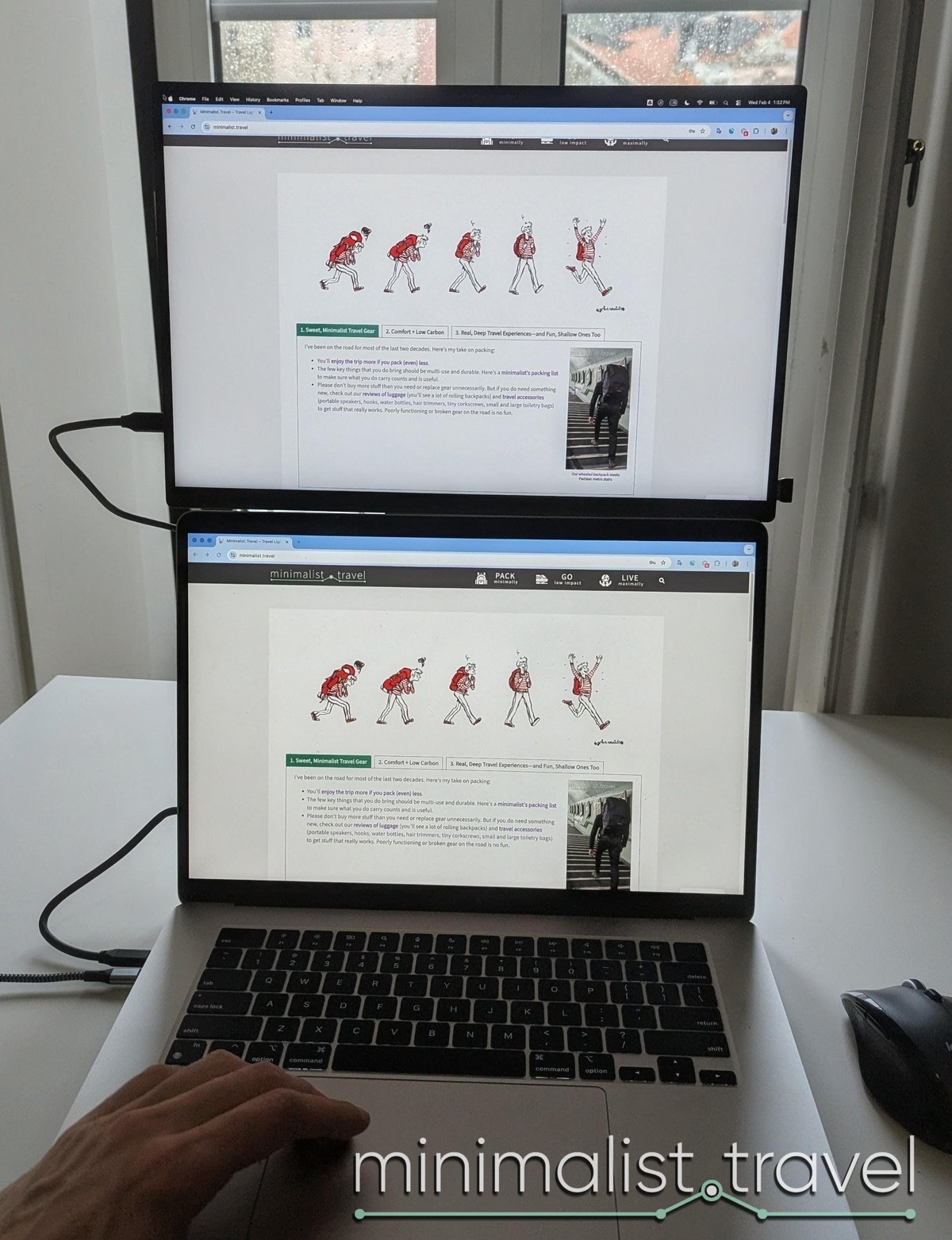
My favorite setup as the months have passed has become the simplest one: only the laptop and the Tern monitor, so there’s no need to pack a mouse, a keyboard, or a laptop stand. It doesn’t matter that the laptop screen is a bit lower, as I do my main work on the Tern screen at eye level, and I enjoy the laptop’s keyboard (larger than my travel keyboard) and trackpad. See the minimalist two-screen setup below.
Not Just for Travel
Even at home, it can be nice to use as a vertical monitor when I want to refer to documents, rather than my main horizontal monitor. Another use case: a friend uses the Tern to work in her kitchen (better view) after her kid has gone to school, rather than in her office. So Tern can be a comfortable super-temporary setup, even at home.
Verdict After Nine Months
I’ve taken it on every trip. It’s slightly expensive, but absolutely worth it in terms of enhanced productivity over this time.
Which Tern Monitor Should You Choose? 1200P vs. 2.5K vs. 4K vs. 4K OLED
Tern sells the 16″ monitor + stand in four versions. The stand and sleeve are the same; what changes is the screen. Here’s how they compare, based on Tern’s specs and recommendations and my own experience with the 1200P.
| Version | Price (US / UK / EU) | Screen | Best for |
|---|---|---|---|
| 1200P | $349 / £249 / €299 | 1920×1200 IPS, matte, 300 nits, 60 Hz | A second screen for writing, browsing, and watching; the best value. The one I use. |
| 2.5K | $399 / £299 / €349 | 2560×1600 IPS, matte, 500 nits, 144 Hz | Long days on two screens with Windows; brighter and smoother. Not ideal for Macs. |
| 4K | $499 / £399 / €449 | 3840×2400 IPS, matte, 450 nits, 60 Hz | Detailed visuals, design, or coding, or using the Tern as your main screen. The sharpest option for Macs. |
| 4K OLED | $699 / £599 / €699 | 3840×2400 OLED, glossy, 400 nits, 60 Hz | Color-critical work; Tern’s pick for MacBook Pro owners. |
On a Mac? Choose the 1200P, 4K, or 4K OLED. Tern explains that macOS doesn’t scale the 2.5K resolution down well: at full resolution everything looks quite small, and scaled down it can look slightly fuzzy. The 1200P runs natively at 1920×1200, and the 4K divides evenly into the same 1920×1200 workspace, just sharper.
For what it’s worth, the 1200P version I have has been great for writing and watching stuff, and I don’t at all wish I had the OLED. I’m not a professional designer with demanding color work, though. If you are, the 4K or 4K OLED make more sense. Also, when working off of a laptop’s battery, the 1200P will drain it less quickly.
IPS or OLED? The IPS screens (1200P, 2.5K, and 4K) are matte, bright, and energy efficient, which is good for everyday work and for working near windows. OLED gives richer colors, deeper blacks, and higher contrast, but it’s a glossy screen.
Price, Shipping, and Returns
- Tern sells directly from its own site. It ships from Estonia, and from a US warehouse for US orders, so there are no import duties in the EU, UK, or US. Elsewhere, local import duties may apply.
- Shipping is free (FedEx Economy) on orders over €150, which covers any of the monitors: 4–7 business days in Europe and 5–9 elsewhere, with paid express options.
- Returns are free within 14 days, and the monitor has a 1-year warranty.
- In the box: the monitor, the stand, a 180-degree USB-C video cable, a USB-C power cable, an HDMI cable, and the sleeve. There’s no power adapter, which most people won’t need (see the FAQ below).
- Buying two for a three-screen setup? Tern currently offers a 10% discount when you buy two.
Good Nomadic Multi-Screen Setup Options with the Tern Stand and Monitor
There are multiple ways you could use Tern’s Stand and Monitor; here is what I’d suggest.
The Minimalist Two-Screen Setup
If you don’t want to carry much, you can extend the tripod stand and have the Tern Setup Monitor at eye height with the laptop screen as a secondary screen just below. This means using the laptop keyboard and trackpad, so there is no need to carry an extra keyboard and mouse. After nine months, this is the setup I use most.


Two Screens at Eye Height
If you prefer to work off of both screens at eye height, you’ll also need a stand that raises your monitor up. Look for anything like this light, portable aluminum stand that actually raises the whole laptop up so that the top of the screen is flush with your eyes. The one in the photos below is the Nexstand, which Tern now sells too, so you can get it in the same order as the monitor.

Elevating the monitor means that the keyboard is now also elevated and so no longer comfortable for typing with good posture. You will therefore almost certainly also want to carry a good portable keyboard and mouse. Any mouse is pretty packable but I’ve found that it’s important to have a good keyboard with a built-in cover to protect it when it’s stuffed into a bag; the best keyboard I’ve found for travel is the Logitech Keys-to-Go 2 Keyboard.
Here is what such a setup looks like.

Three-Screen Configurations with an Apple Laptop, Tern Monitor, and iPad
To get even more screen real estate in a travel-ready configuration, you could of course buy two Tern Monitors + Stands and run them on any laptop capable of running three screens. (Tern currently takes 10% off when you buy two.)
Another way to do this—and what I prefer—is to travel with an iPad as well, which is great for reading and watching stuff while in transit and serves as a ready reference screen for material while writing. Apple OS can automatically configure your iPad to do this and it actually works great connected wirelessly, with no lag. The iPad screen is too small to be comfortable to write or do serious work on by itself, but as a supplemental screen to the other two, I’ve found it works great. I’ve used it to keep mainly reference material on hand that I refer to occasionally while working.

Alternatives to the Tern Monitor + Stand
The Tern isn’t the only way to work on two screens on the road. Depending on your budget and what you already own:
- A cheaper portable monitor with a kickstand. Before the Tern, I worked for years with an Arzopa 16.1-inch monitor, which costs a fraction of the price; I describe that setup in my portable multi-monitor setups. It’s a fine screen, but it sits on the table, so you look down at it.
- Other magnetic stands. Flexsta makes a (suspiciously similar) magnetic tripod stand, and espresso sells magnetic stands for its own displays. I haven’t tested either but hope to do so soon.
- Monitors with a built-in stand. Some portable monitors, like Sotsu’s, have a stand built into the monitor itself. I haven’t tested these yet either.
For me, the combination of a fully adjustable stand that gets the screen to eye level and a monitor that packs flat with my laptop is what makes the Tern worthwhile.
Tern Monitor + Stand FAQ
Is the Tern monitor worth the price?
If you work and travel regularly, I think so. It’s slightly expensive, but after nine months I find it absolutely worth it in terms of enhanced productivity. If you only need a second screen now and then, a cheaper portable monitor with a kickstand will do.
Does it work with a MacBook Air, iPad, or phone?
Yes. I use it with a MacBook Air, with a single USB-C cable carrying video and power. On a Mac, choose the 1200P, 4K, or 4K OLED rather than the 2.5K (see above). Tern says it also works with iPads and Android tablets, though some iPad Pro M4 and M5 models need a Thunderbolt or USB-C-to-HDMI cable. Phones need a USB-C port that supports DisplayPort Alt Mode.
Do you need a power adapter?
Usually not. With most modern laptops, the monitor gets its power through the same USB-C cable that carries the video. You can also plug your laptop charger into the monitor, which passes up to 40W through to the laptop. Tern sells a 30W adapter separately if you want to power the monitor while connected over HDMI; I’d recommend instead just getting a universal travel adapter with USB-C which does the same job and a lot more as well.
Does it wobble or tip over?
Not in my experience. The magnet holds the screen firmly, and the legs spread wide enough that it’s unlikely to tip if bumped, while taking up very little table space.
Does the magnet affect the monitor?
Tern says the stand’s small magnet can’t affect the monitor’s electronics, and mine has worked perfectly for nine months.
How much does it weigh?
On my kitchen scale, the monitor weighs 740 grams and the tripod 335 grams. Tern quotes 1.15 kg for the two together.
Can you buy the stand without the monitor?
Yes. Tern sells the stand separately, with metal plates you can attach to other portable monitors or tablets.
The Bottom Line
After nine months, I’ve taken the Tern monitor and stand on every trip and used it nearly every working day. It’s slightly expensive, but if you work and travel regularly, it’s absolutely worth it for the productivity and the comfort of having your main screen at eye level wherever you end up working.
Your Experiences with Tern: Choose and Share Below
I will be curious to see how Tern is performing for you and what your ideal setup is. I’ve heard from some of you via email, but take advantage of the comment section below so that everyone can see your wisdom!







Very helpful, thanks!
Good Article